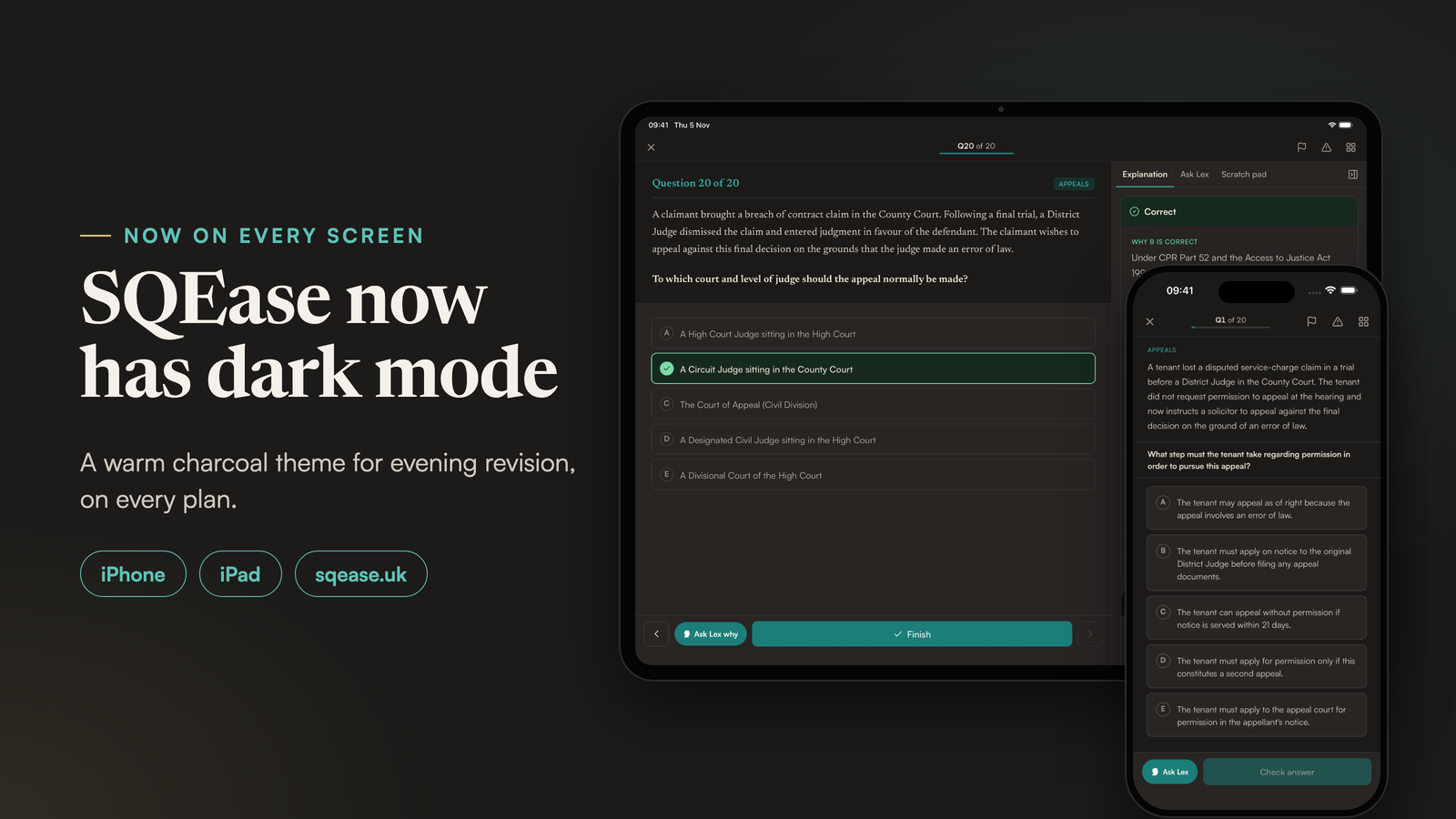
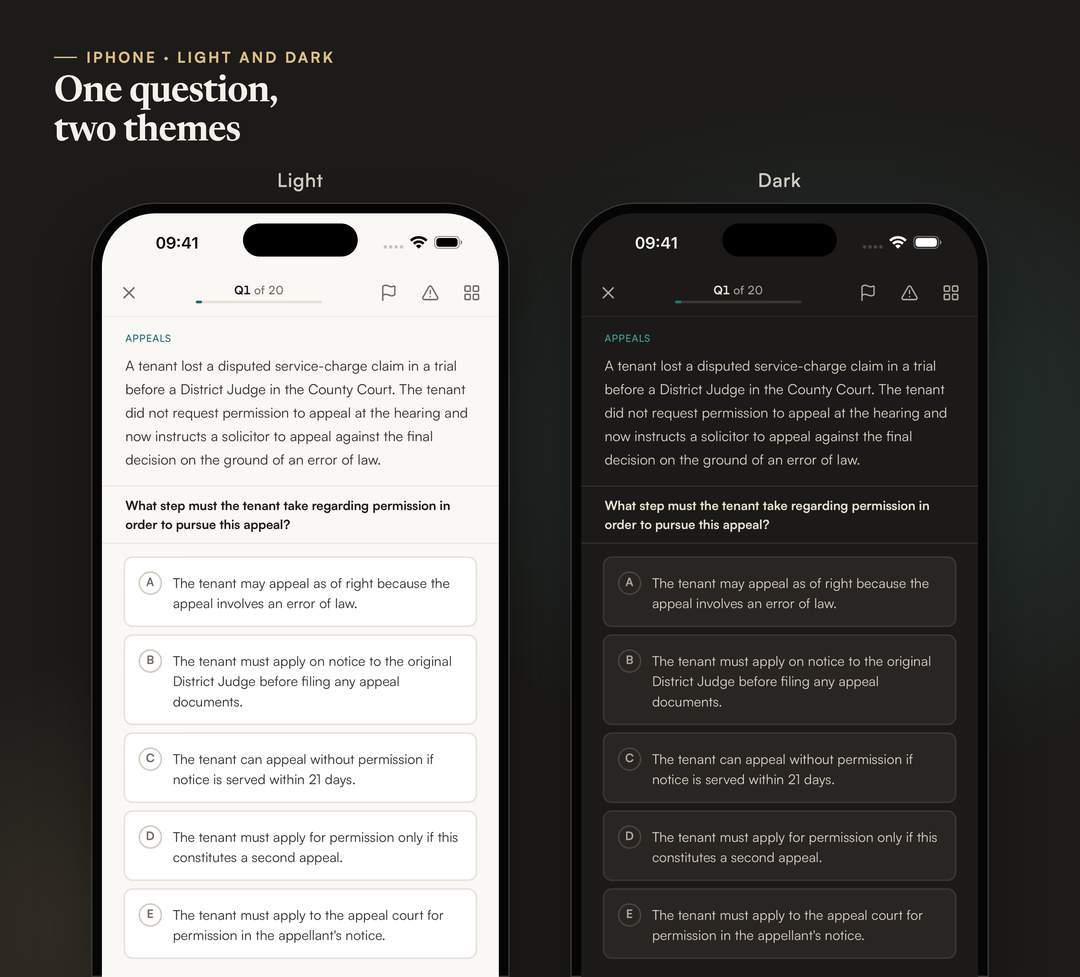
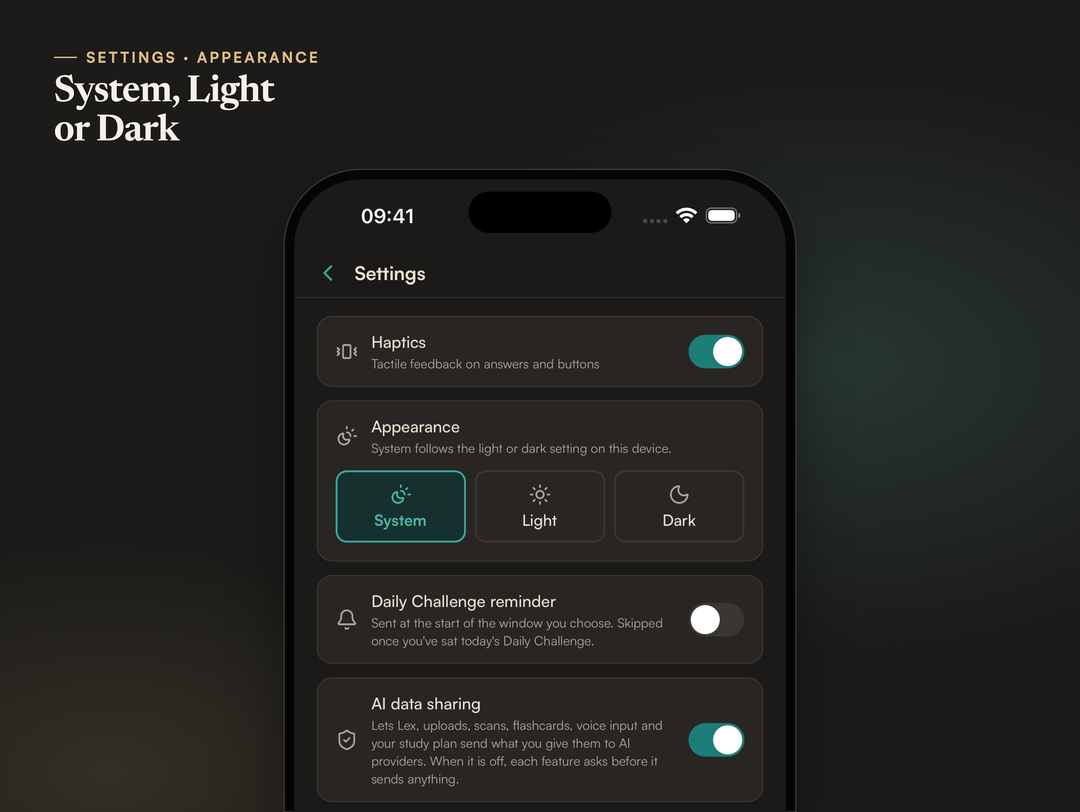
SQEase, an SQE1 practice platform, now has a dark mode on iPhone, iPad and the web app, on every plan. It is a warm charcoal theme beside the ivory light one. By default SQEase follows your device's light or dark setting, and you can choose Light or Dark yourself under Appearance.
What is SQEase's dark mode?
Dark mode gives every screen of the SQEase app a warm charcoal background with light text, in place of the usual ivory page. It came to the iPhone and iPad app in version 1.2.0 on 2 November 2026, and to the app on sqease.uk on 5 November 2026. It is on every plan, including the free plan.
We built it for the way many SQE1 candidates revise: in the evening, after a day of work or lectures, often for an hour or more at a time. A bright white page late at night is harsh on the eyes, and many people already run their phone and laptop dark. SQEase now matches them.
How do you turn dark mode on?
You do not have to do anything if your device is already set to dark. SQEase's Appearance setting starts on System, which follows the light or dark setting of your iPhone, iPad or computer, and changes with it, including when your device switches automatically at sunset.
To choose a theme yourself, open Appearance and pick System, Light or Dark:
- In the iPhone or iPad app, go to Settings, then Appearance.
- On the website, open the Account page, then Appearance.
The choice is saved on each device rather than on your account. That means you can keep a laptop light for daytime work and an iPad dark for the evening, and each one remembers its own setting.
Dark mode on iPhone
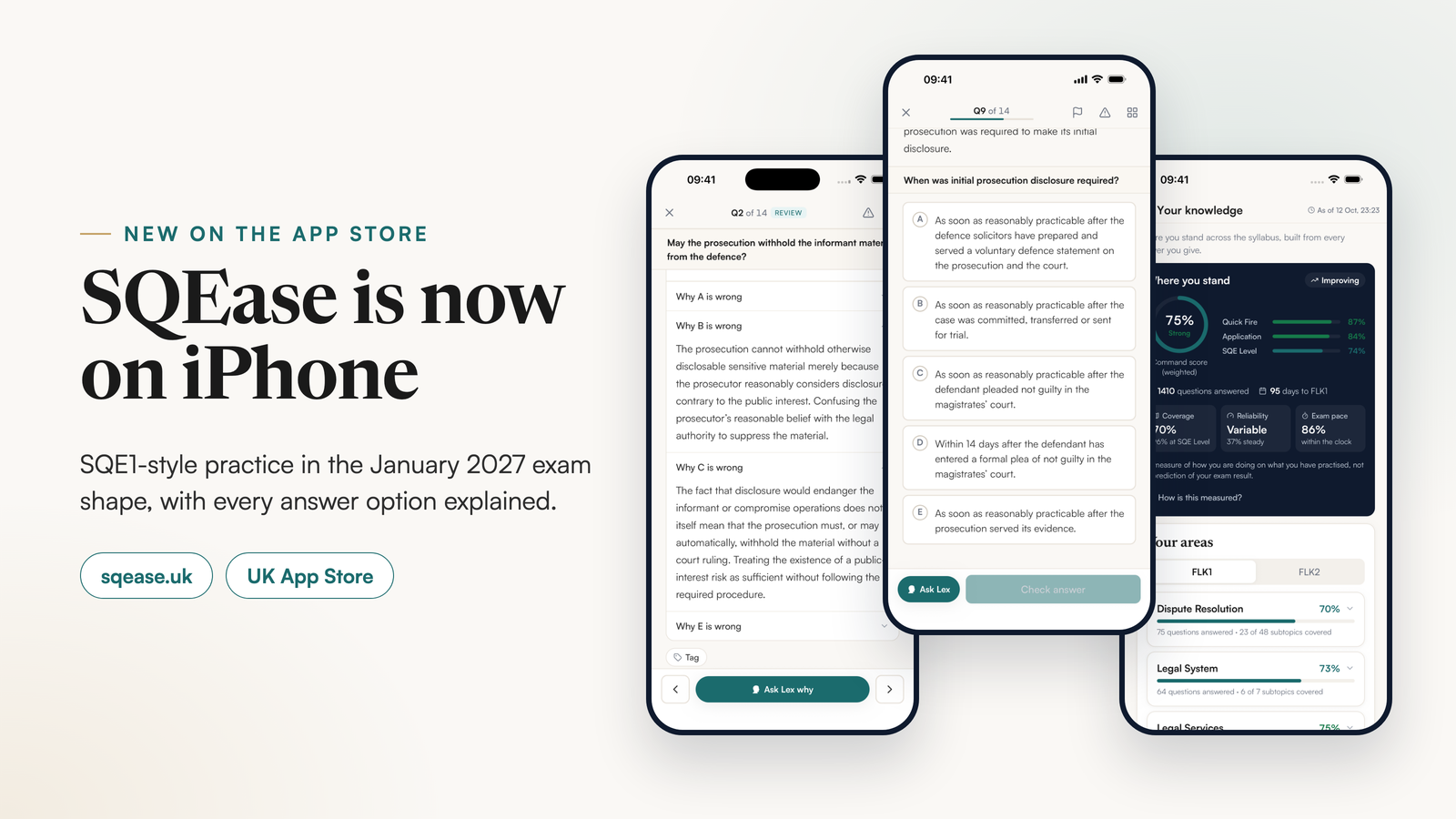
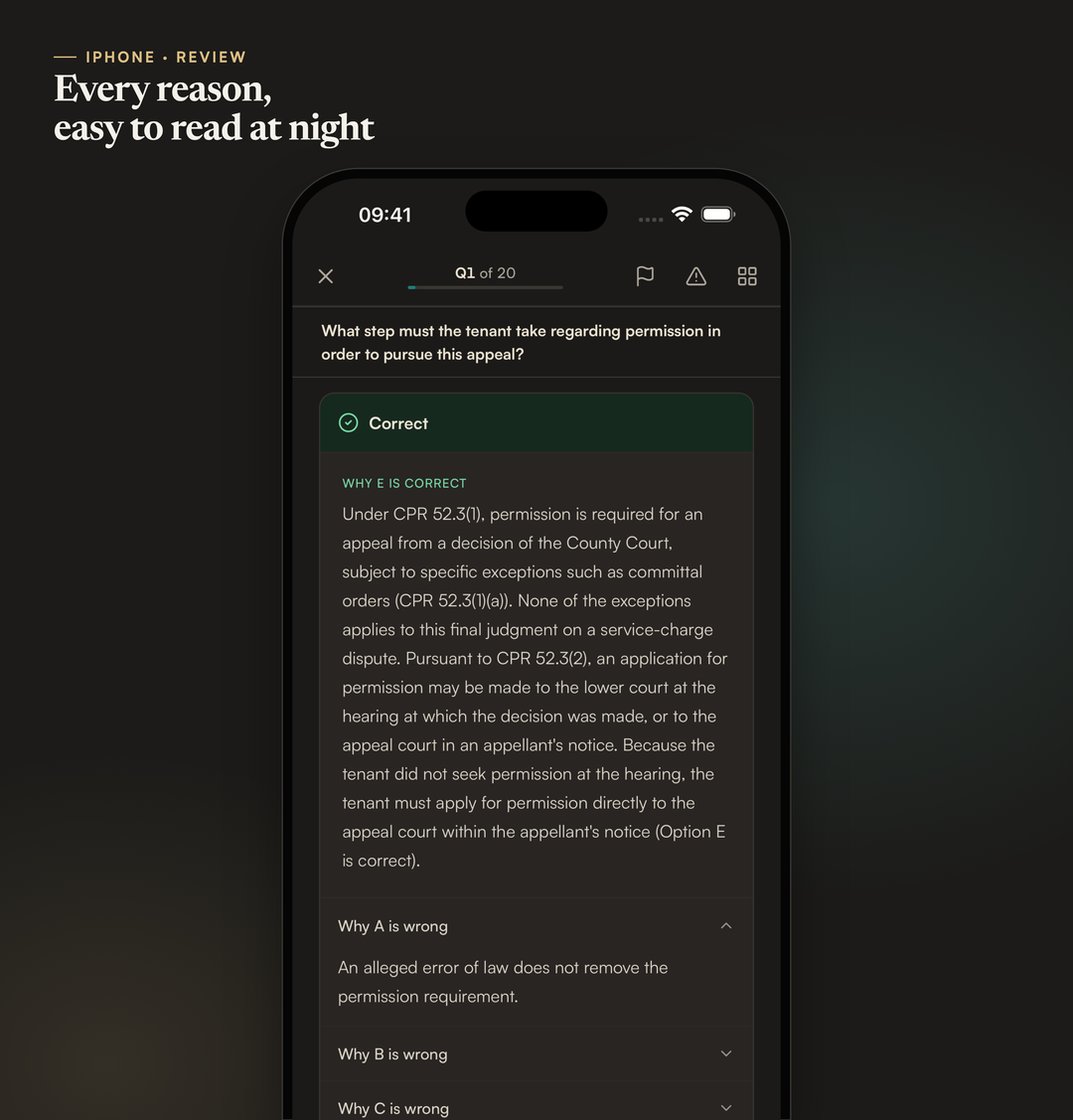
On iPhone, every screen has a dark version: Home, practice and timed mocks, the explanations after each question, Lex, flashcards and your results. The correct and incorrect markings keep their green and red, and the option you chose stays clear against the darker page.
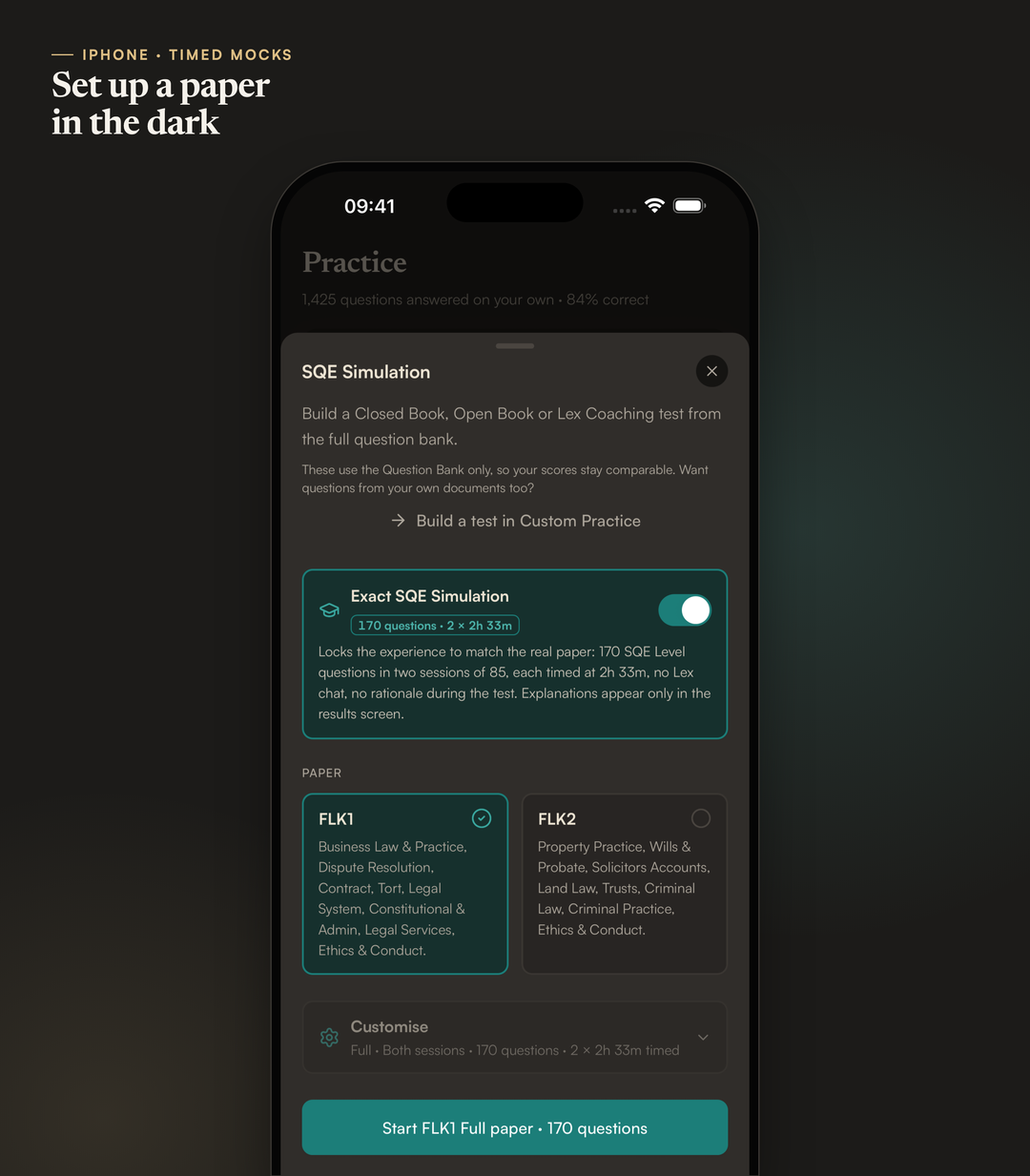
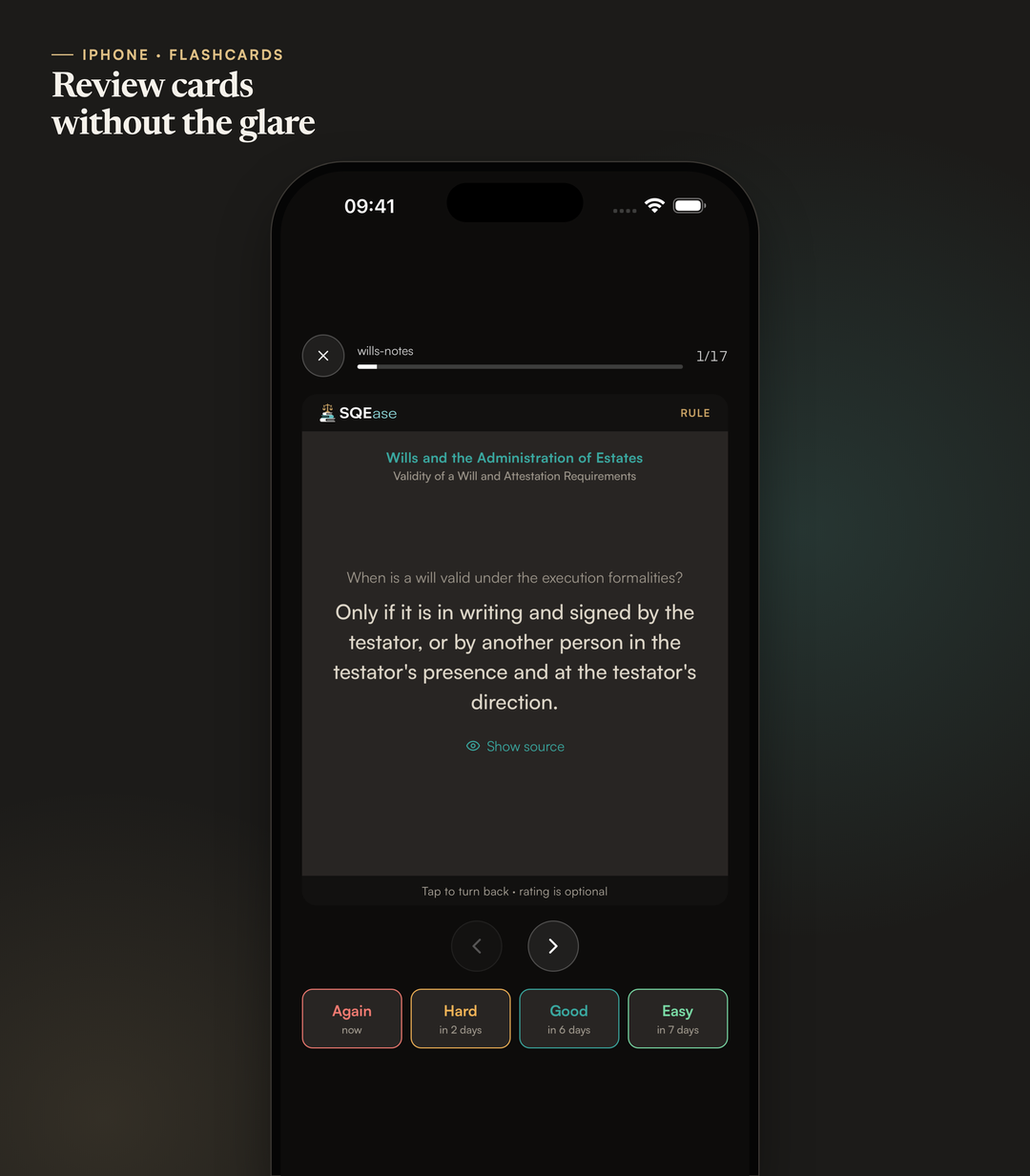
Timed practice looks the same as it works. The SQE Simulation sheet, where you set up a paper in the January 2027 shape of two sessions of 85 questions, keeps its highlighted choices and its start button easy to find. Flashcards keep the four review buttons in their own colours, so Again, Hard, Good and Easy are told apart at a glance, and the card itself is a slightly lighter panel than the page around it.
Dark mode on iPad
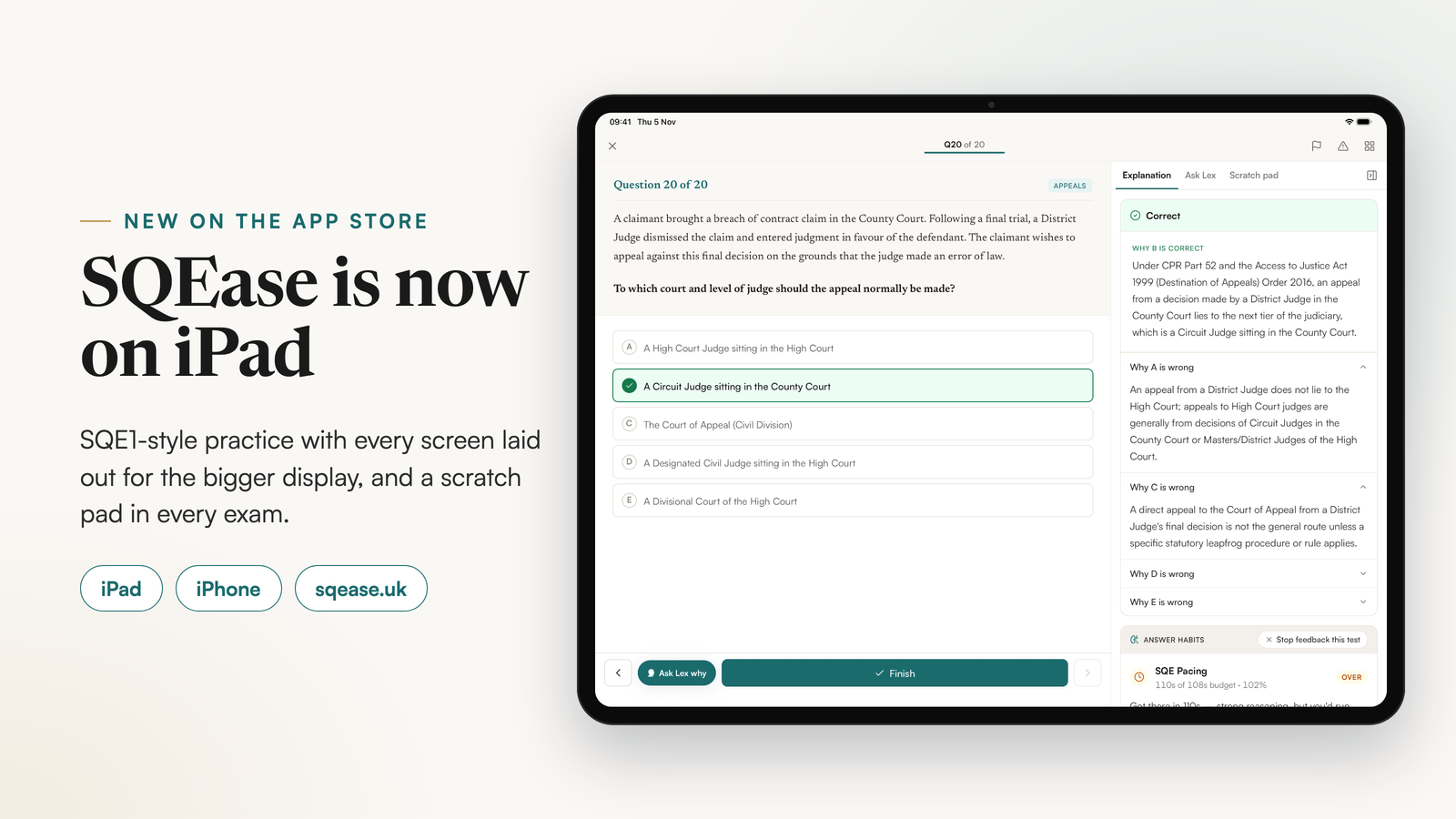
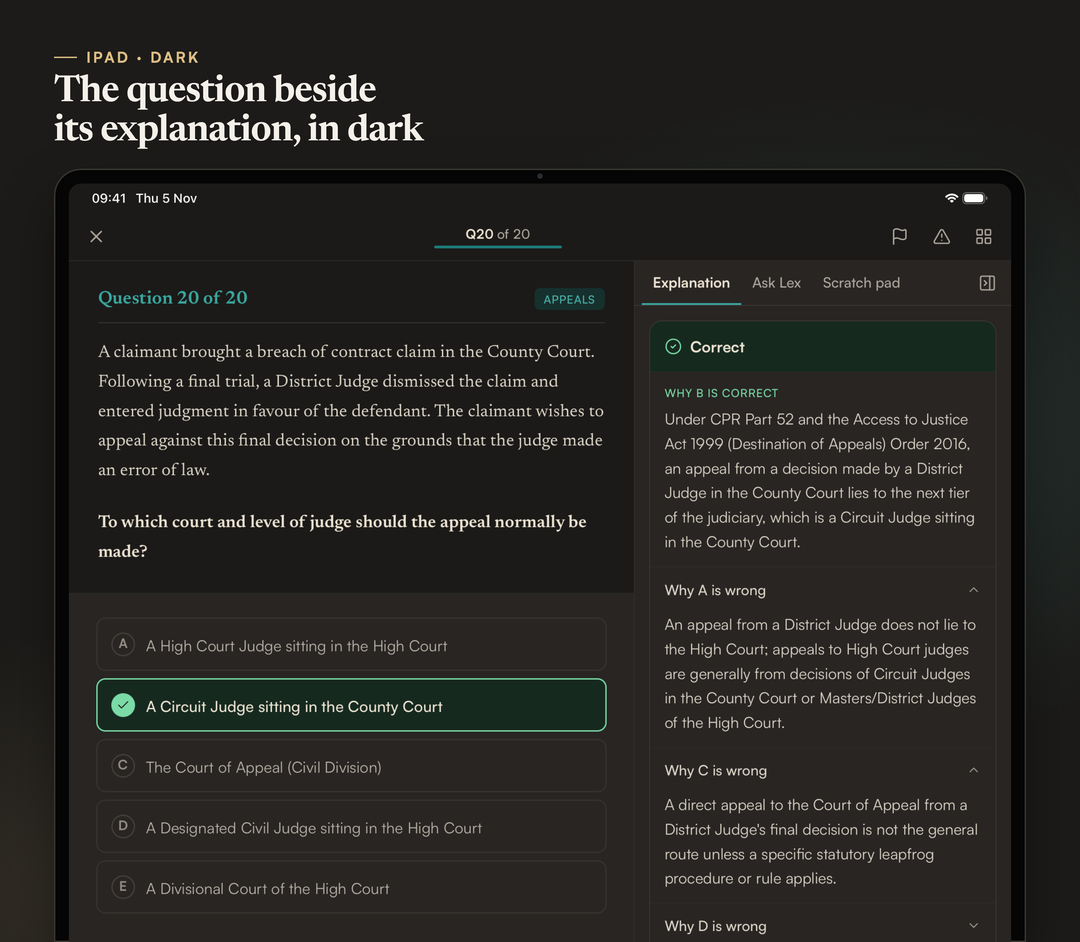
On iPad, the larger layouts work the same way in dark: on a 13-inch iPad, or any iPad turned sideways, the question sits beside its explanation, and the Study Roadmap sits beside Your knowledge. Our post on SQEase on iPad covers what the iPad version does.
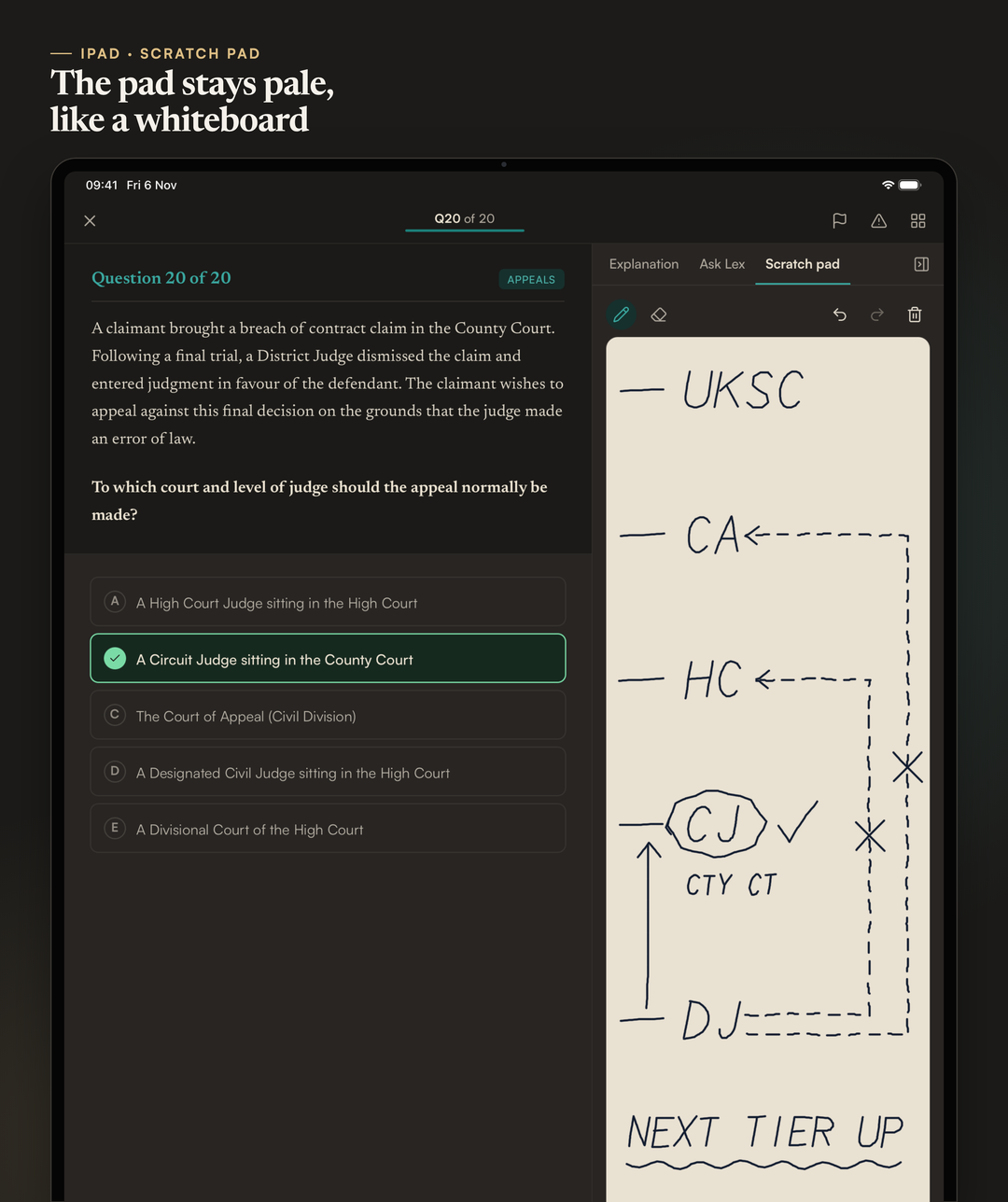
One thing stays light on purpose. The iPad's exam scratch pad keeps a pale, paper-like page in dark mode, so it still feels like the whiteboard the SQE1 test centre gives you, and your writing stays easy to see.
Designed for dark, not inverted
A quick dark mode simply swaps light colours for dark ones, which tends to break the details that matter in an exam app: a red that turns muddy, a link that fades, a chart that disappears. We set each colour again for the dark theme instead. The page is a warm charcoal rather than pure black or navy, the teal and gold of the light theme are lighter so they still stand out, and charts have their own dark colours.
The colours are also measured. SQEase's shared colour tokens list each pairing of text and background the app uses, and a check runs every time we build the site: it fails if any of those text pairings falls below a contrast ratio of 4.5 to 1, in either theme. That is the level the Web Content Accessibility Guidelines set for normal text.
The limit: dark mode covers the SQEase app only. The sqease.uk website, this blog and the legal pages stay light.
How to start
- Open SQEase on sqease.uk or in the iPhone and iPad app, version 1.2.0 or later.
- If your device is already dark, SQEase follows it. Otherwise choose Dark under Appearance.
- Practise on the free plan: five SQE1-style questions a day, reset at midnight UK time, with fifteen Lex messages a day to explain them.
To see what the paid plans add, visit the pricing page, or read what each part of SQEase does.
How this was written: Finlay Salisbury wrote and edited this post. AI tools helped with drafting. Every factual point was checked by him against the app and the linked sources. He is not a solicitor, and this is study information, not legal advice.
SQEase practice questions are written by AI and checked by automated multi-model processes. They are not reviewed by a solicitor and are not SRA or SQE1 exam questions.